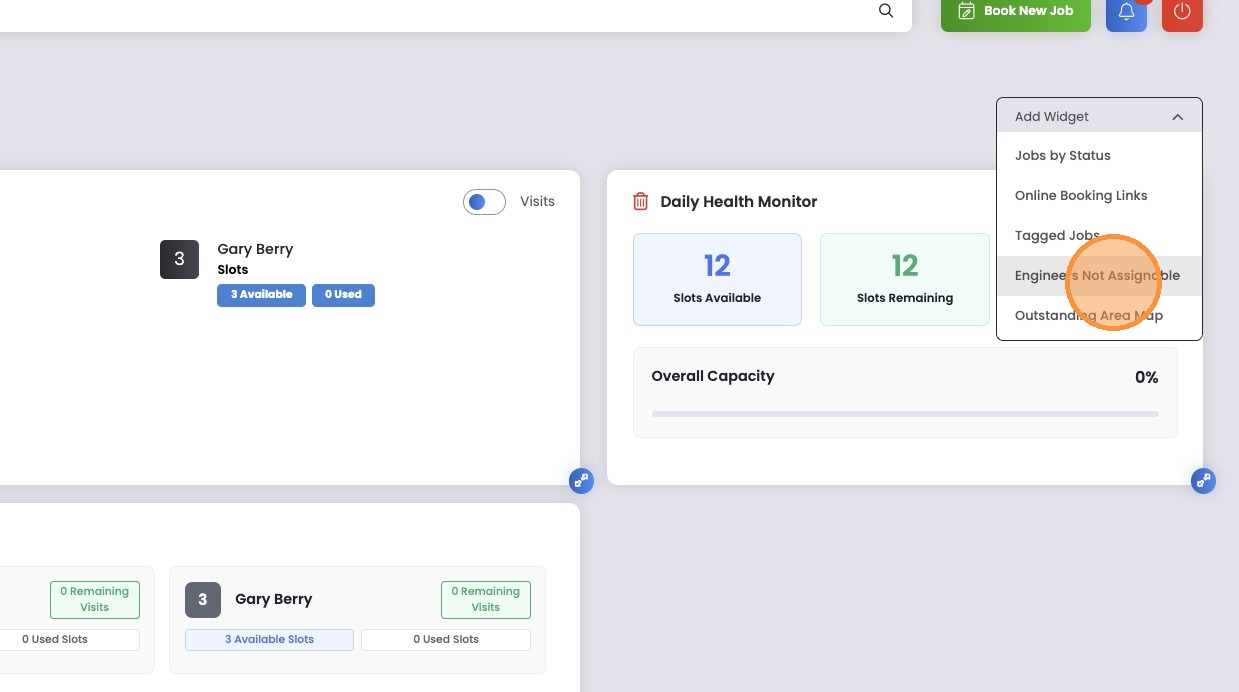

Using, arranging and removing Dashboard Widgets
Learn how to optimize your workspace by adding and configuring essential operational widgets. This guide helps you set up a personalized dashboard to monitor engineer assignments, daily health, and job scheduling effectively.
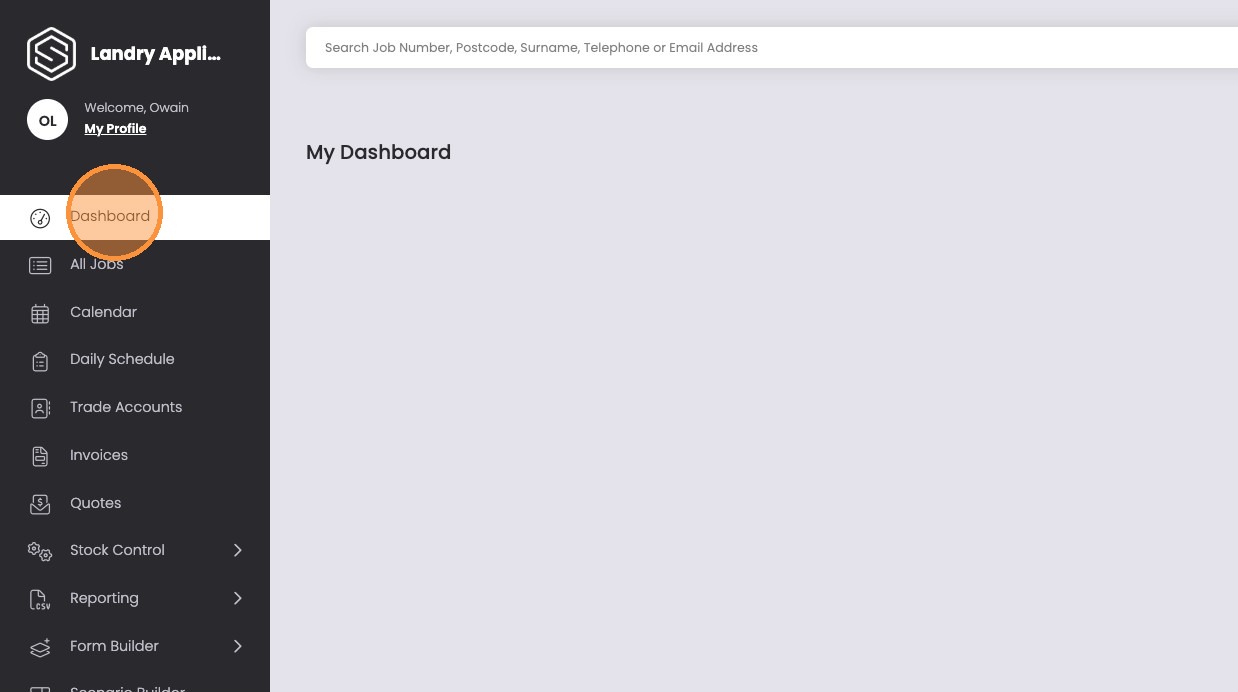
1. Click “Dashboard”
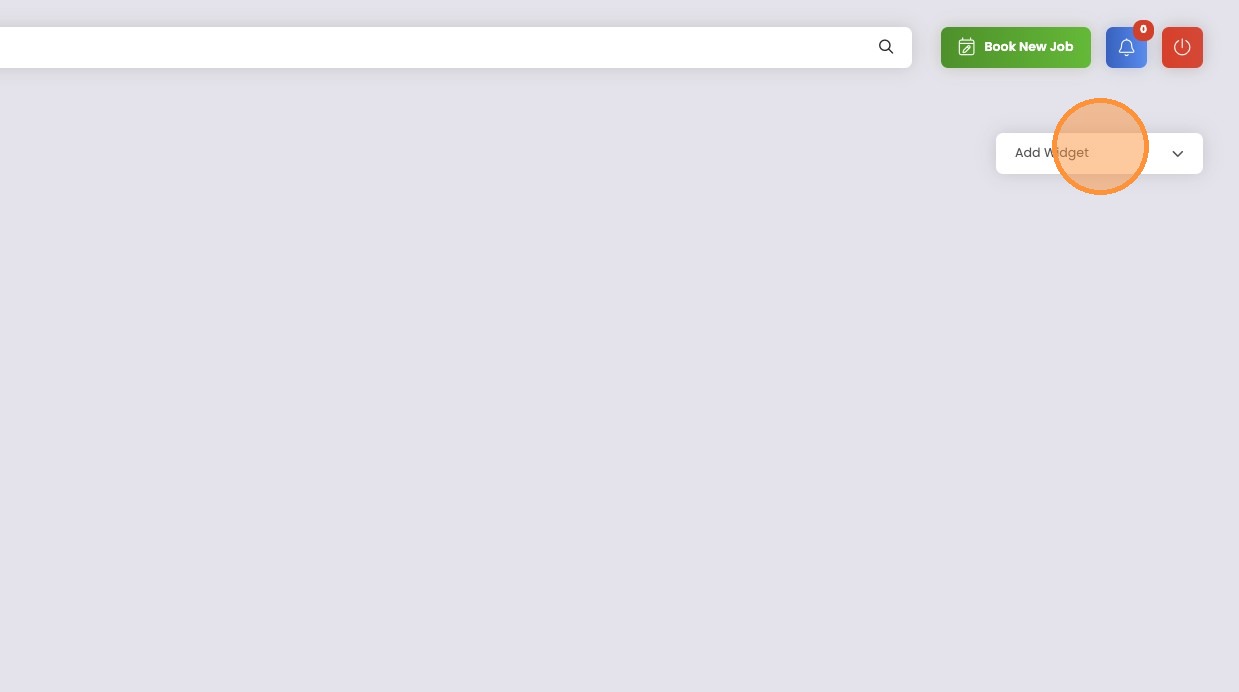
2. Click “Add Widget”
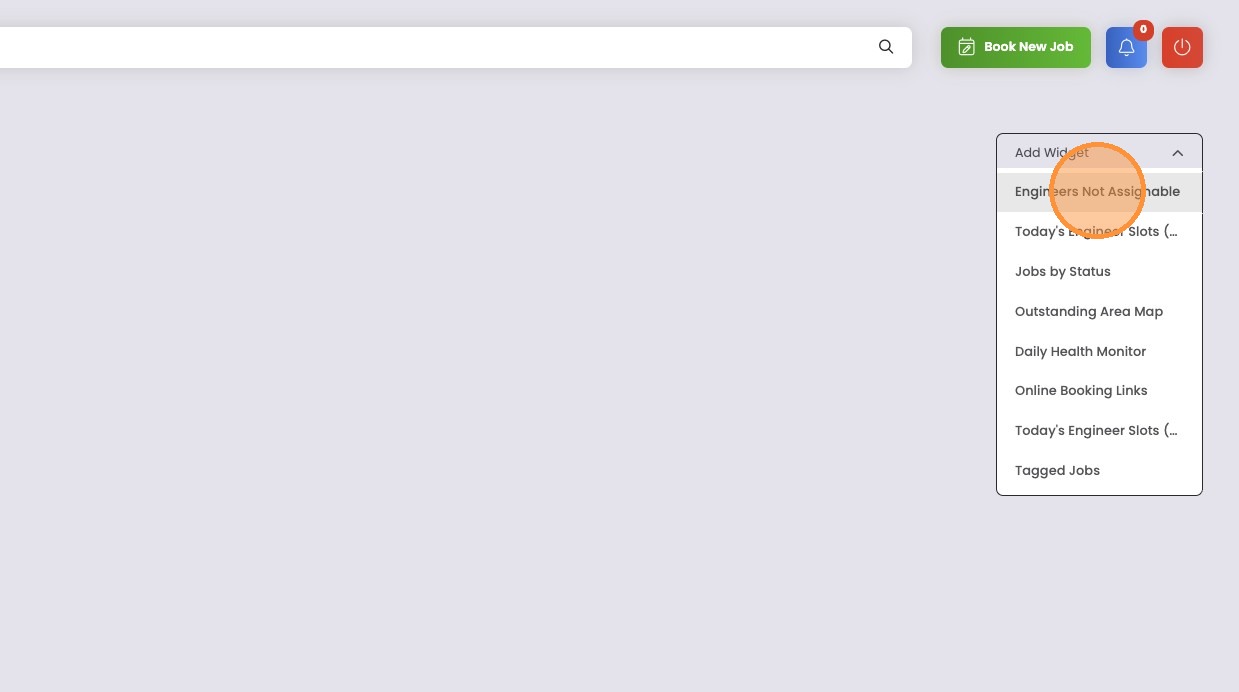
3. Select the widget that you require
In this example… “Engineers Not Assignable”
4. The widget appears on your Dashboard
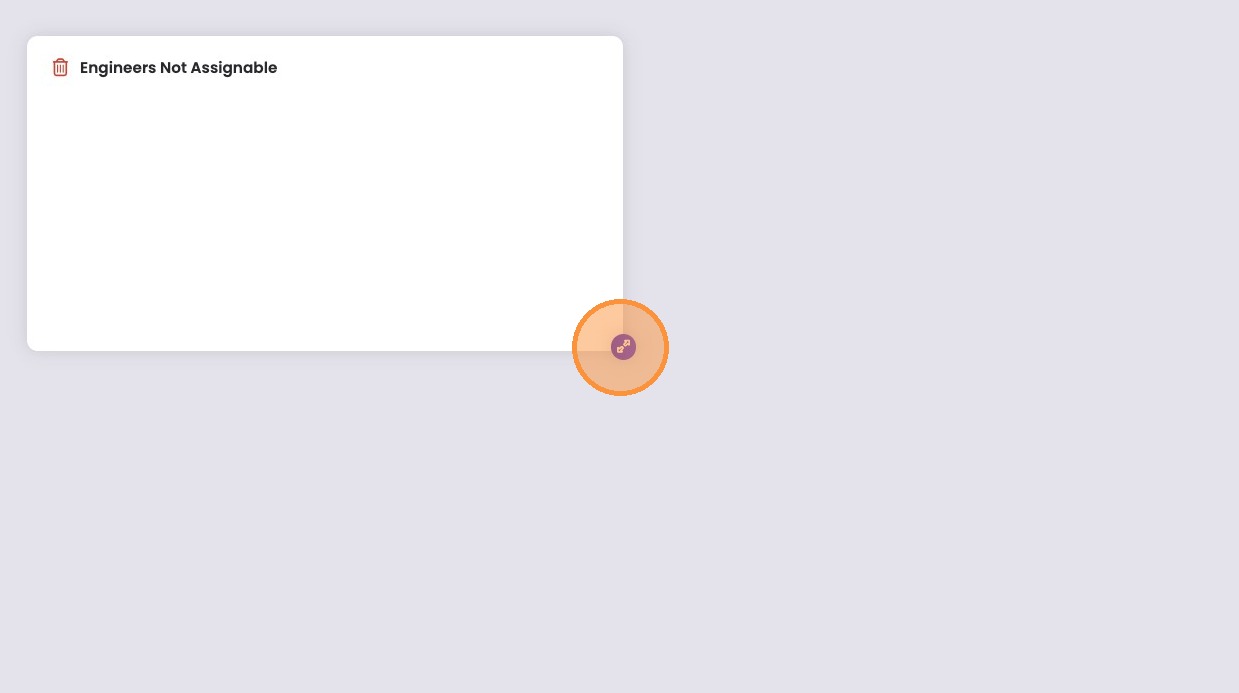
To resize the widget, click the arrow icon in the lower right of the widget.
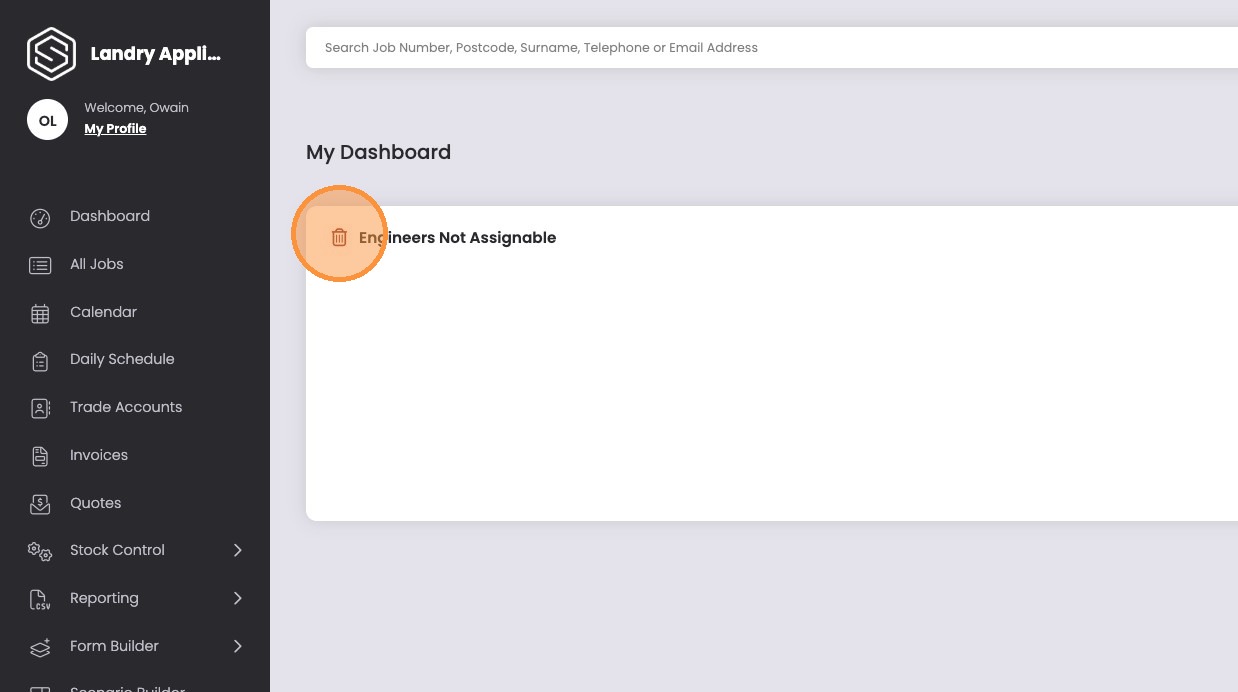
5. To remove a widget
Click the bin icon at the top left of the widget.
6. To move or reposition a widget
Click in the title section of the widget and place it where you want it.
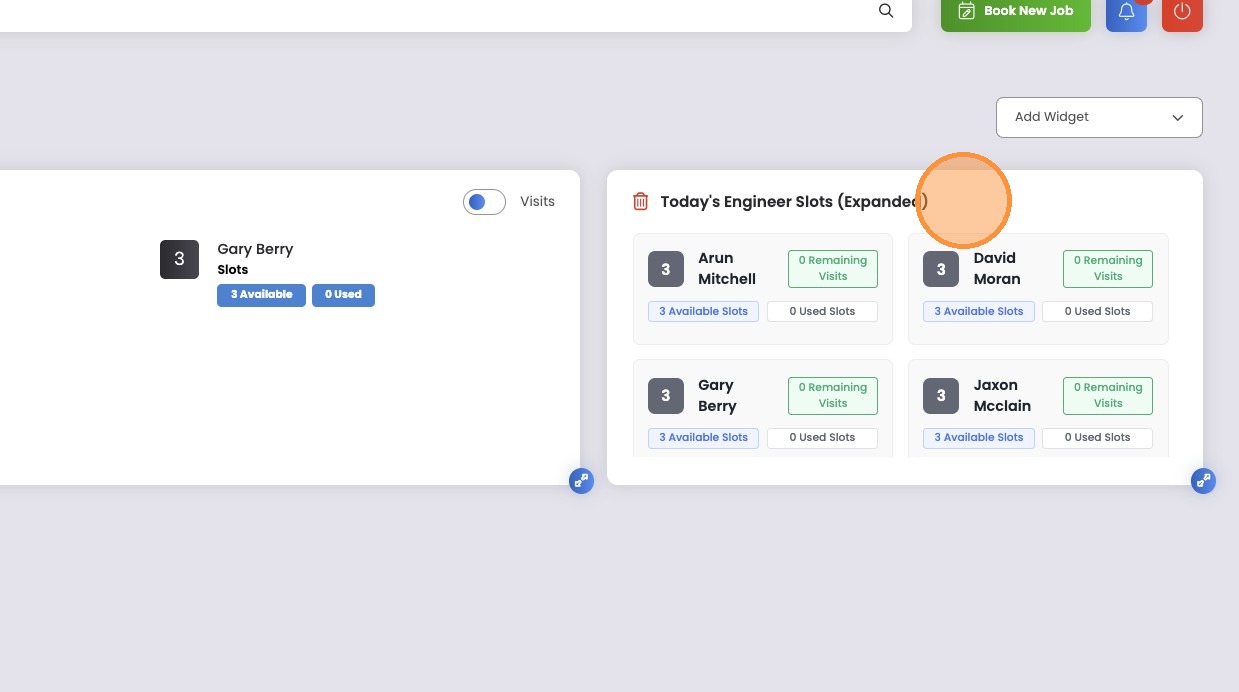
7. To add multiple widgets
Keep adding them by selecting them from the drop down list.