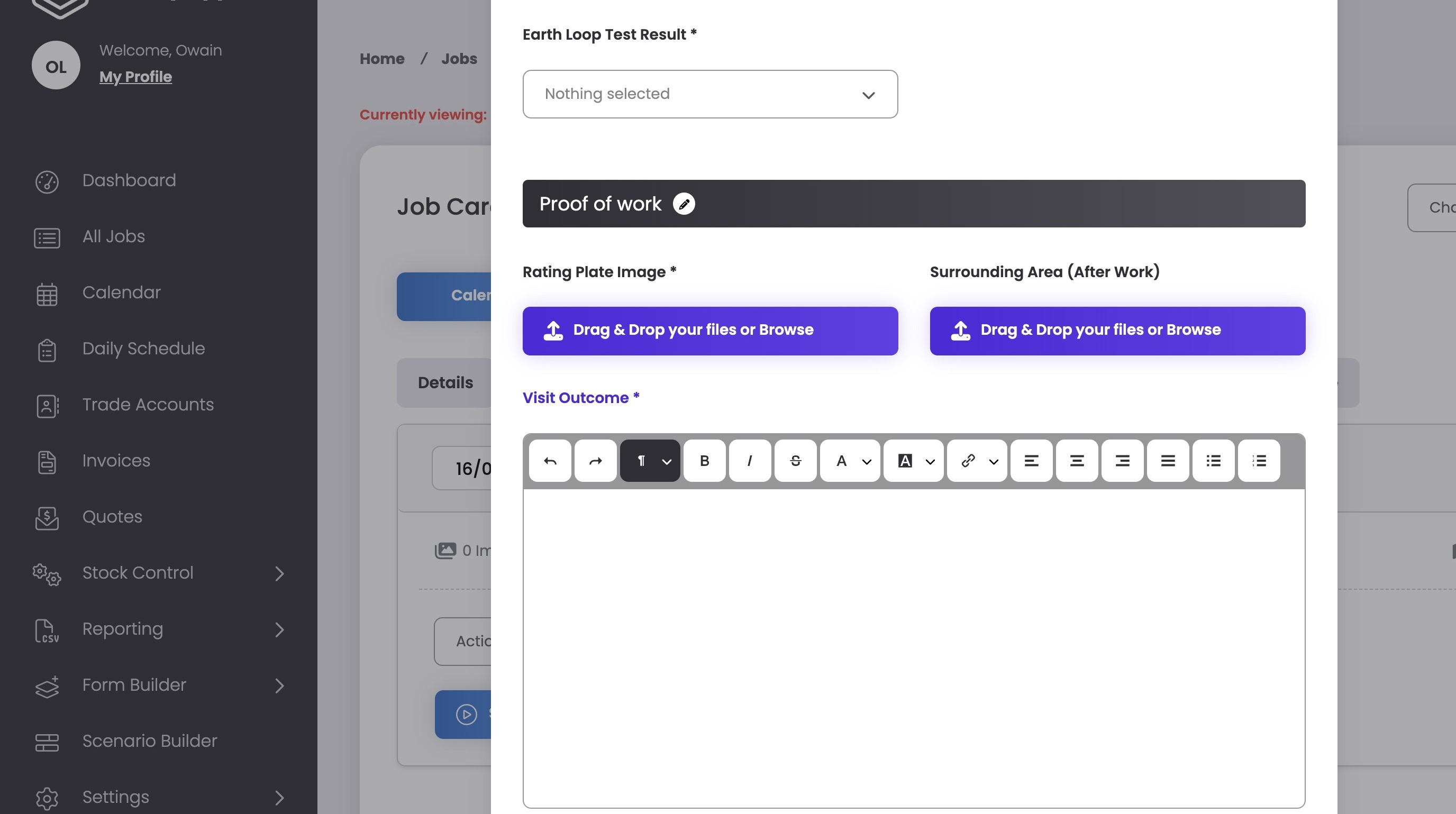

How to Change Field Labels in ServiceMate
Learn how to effectively modify field labels within your ServiceMate job forms to ensure your digital records remains accurate. This guide provides a simple workflow for updating form labels and verifying the changes within your active job records.
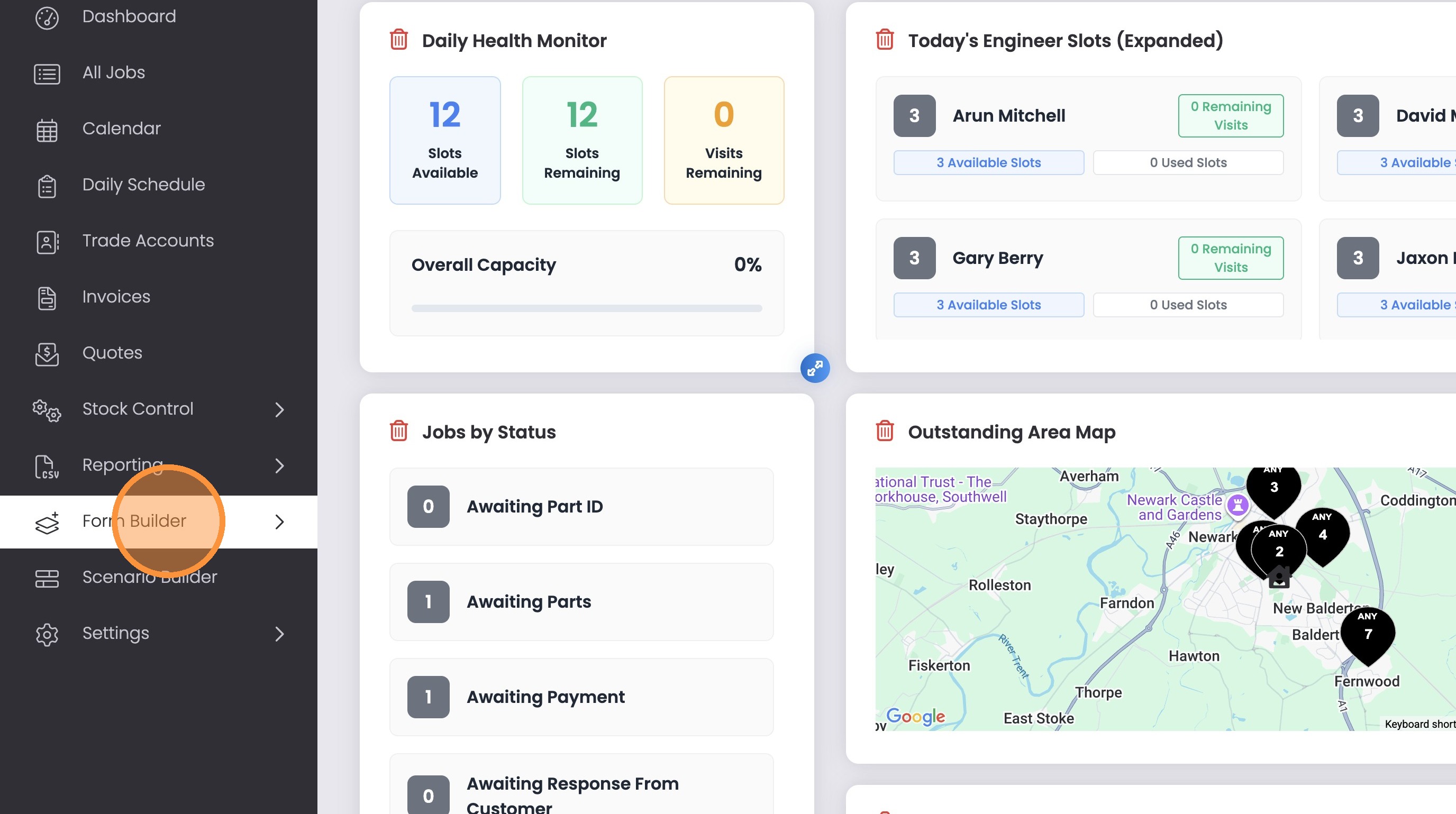
1. Click “Form Builder”
If you do not have access to “Form Builder”, then speak to your system administrator about making the following changes.
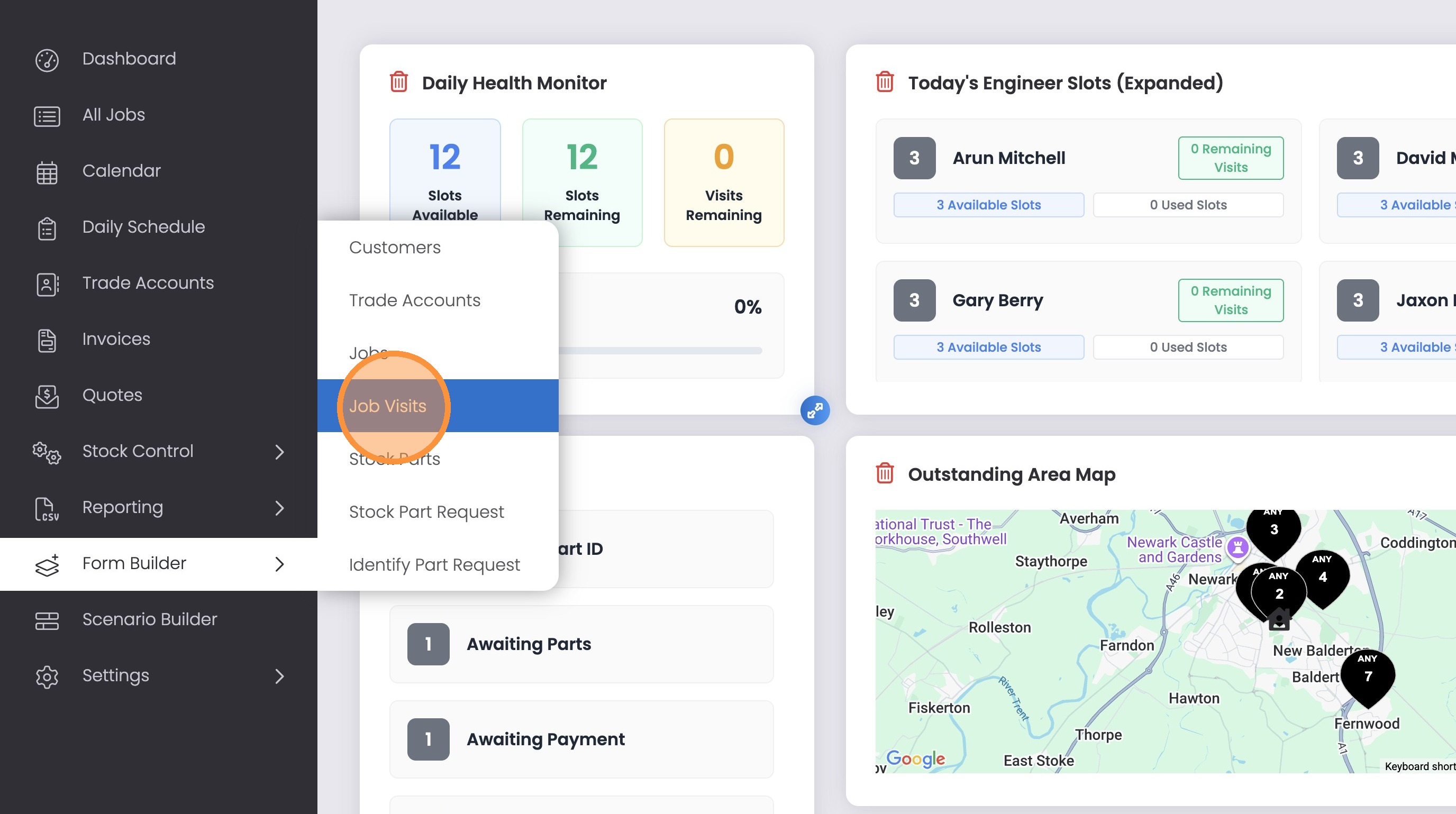
2. Click “Job Visits”
You can manage other forms in ServiceMate, however in this example we’re going to edit the fields the engineer fills out during their attendance at the property. These are contained under “Job Visits”
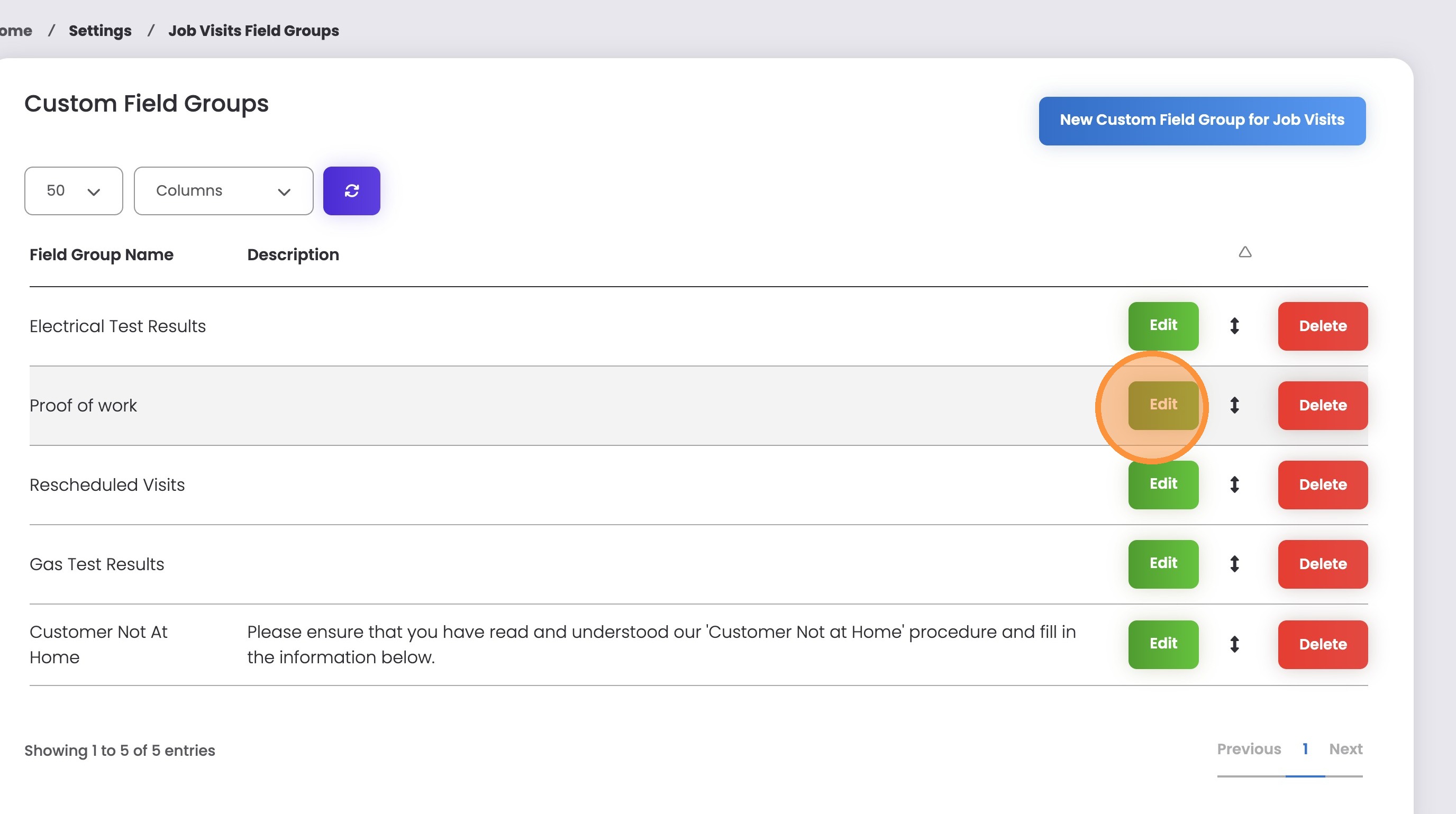
3. Click “Edit” on the group you’d like to edit
You can find out which group you’d like to edit by looking at the “Field Group Name”, this should match the header above the field you’d like to edit in the form.
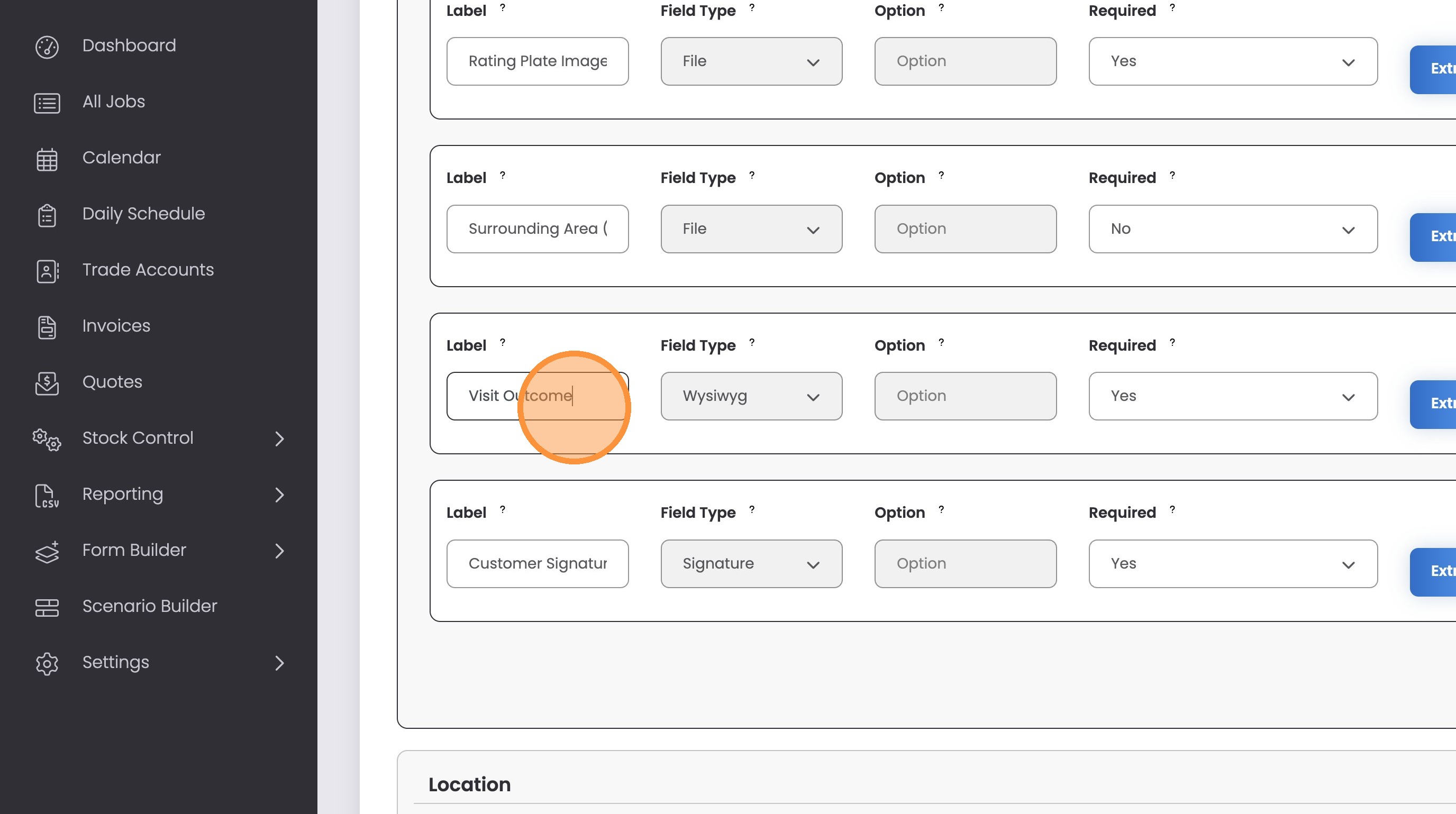
4. Make changes to the label in the free type text fields.
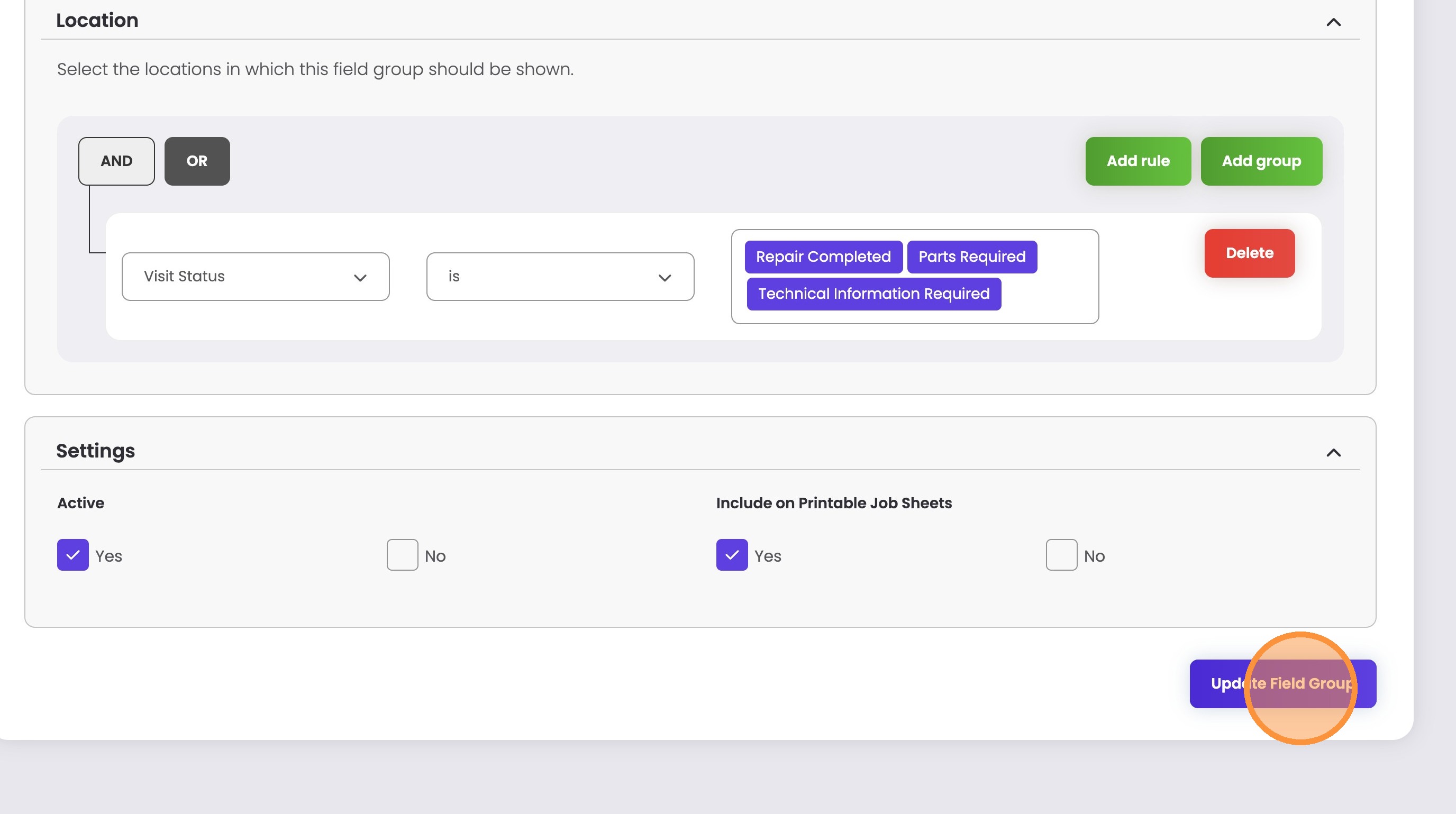
5. Click “Update Field Group”
Make sure to save your changes after amending the label, otherwise no changes will be made.
6. The label should have now changed